Description
This guide will cover the two ways to search for tools in SMDS – either using FIND TOOL or MANAGE TOOLS.
FIND TOOL – will take you to a page that displays the major categories of Success Measures tools.
MANAGE TOOLS – will take you to a page where there is a list of your organization’s tools.
NOTE: Whether or not you have access to specific tools within any of these categories depends upon your organization’s subscription to SMDS. If you are interested in learning more about the tools that exist within a specific topical area, you can find lists of tools with a brief explanation at the successmeasures.org website or contact Success Measures at successmeasures@nw.org.
Find Tools
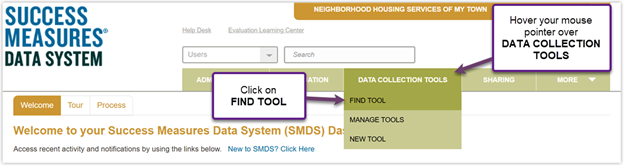
- Hover over the DATA COLLECTION TOOLS tab. Click on FIND TOOL.
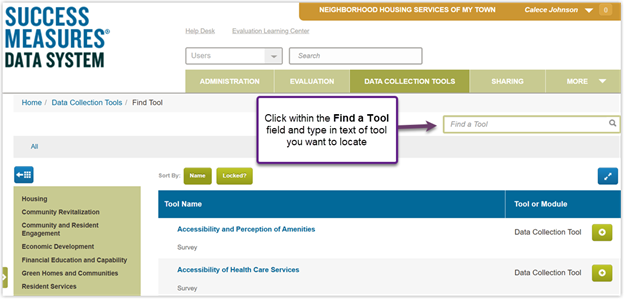
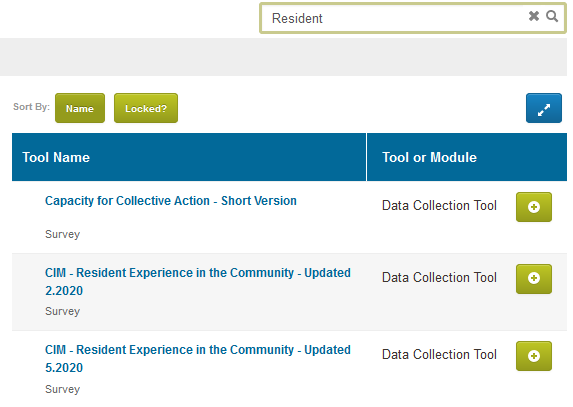
- At the FIND TOOL page you will see a search box where you can type a tool name or portion of a tool name and then click the Search icon. This will bring up a list of any tools that your organization has with that word in the title.
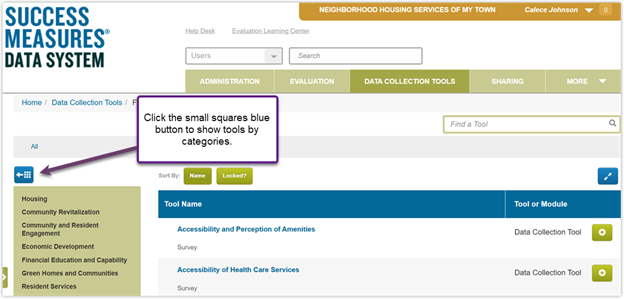
- Another way to find a tool is to click the squares on left hand side of the screen to show categories of tools.
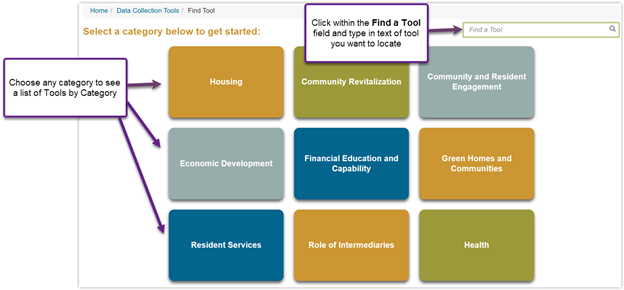
- You can now search for tools by clicking in the text field or click a category to see a list of tools in that category.
- When you click the search icon, a list of relevant tools will appear. On the list you will be able to see the tool name and the type of tool that it is (i.e., survey, tracking sheet, observation tool etc.).
Previewing Tools and Questions
There are two options available for previewing tools and questions.
Previewing Option 1
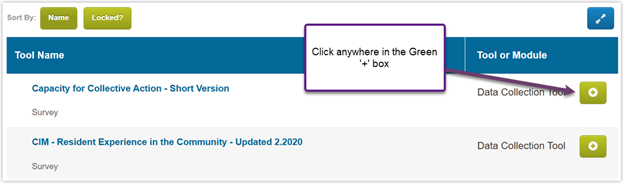
- Click on the green plus sign under Tool or Module to see more details about the tool.
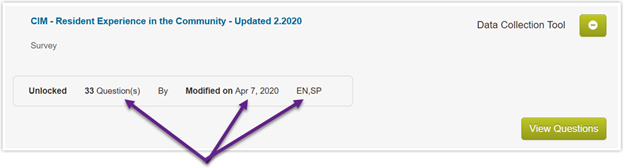
- A row will appear which shows how many questions are in the tool, date the tool was modified and what languages are available for that tool.
- Click the green View Questions button to display the questions and answer sets for the tool.
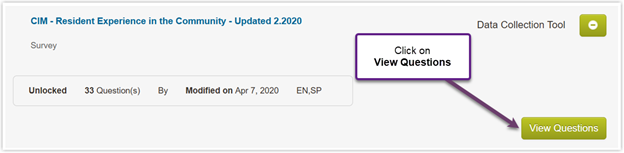
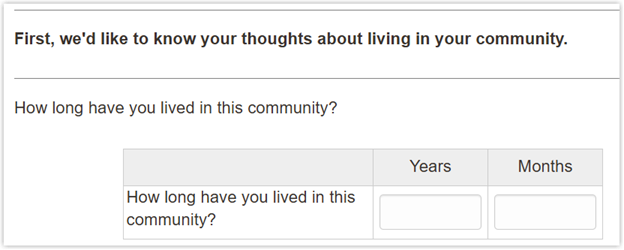
- When you click the View Questions button, the system will open a new page where you can see all the questions in the tool. If you click on a question, the answer options will display.
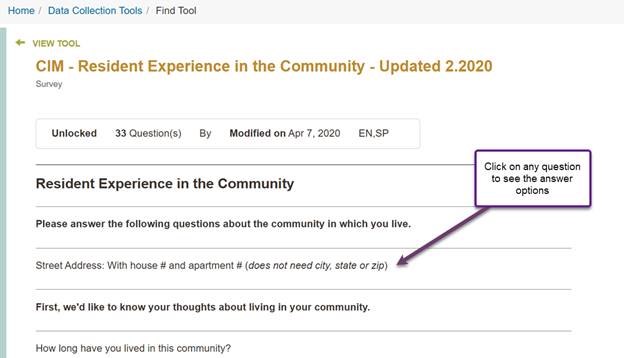
- The answer options will appear below the question. You have to open each question if you want to see every answer options. Scroll to bottom of page to see options to view whole tool.
Previewing Option 2
- Click on the Tool Name instead of the green plus sign.
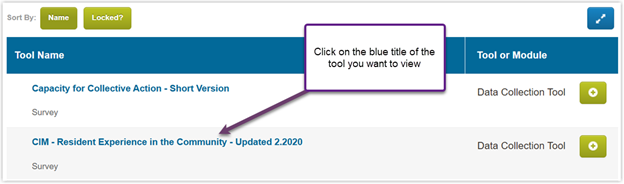
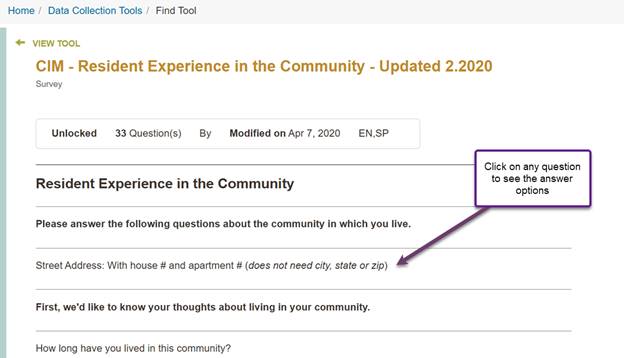
- This will take you to a new page that displays the tool with its questions. Click on any question to see the answer options.
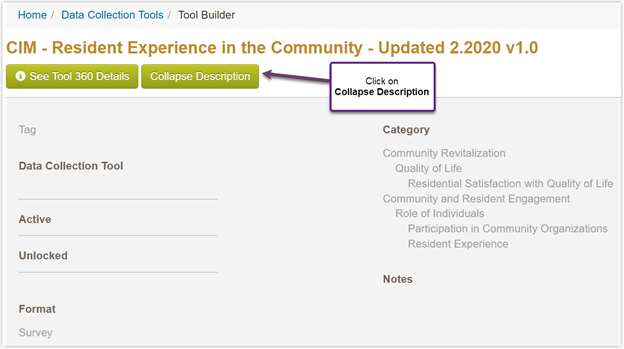
- In this view you also have the option to click the green button to Expand Description and see any tag words the tool was tagged with when it was created, and what categories of community development the tool creator selected as being relevant to this tool. This information might help you understand what types of programs and situations the tool creator intended this tool for.
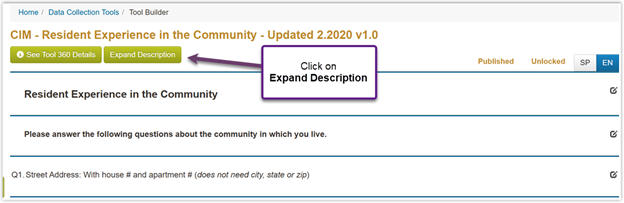
- Click Collapse Description to hide that information.
Viewing the complete tool
- At the bottom of the page, you will see that you have two options for how to look at the tool: Word Format and Preview.
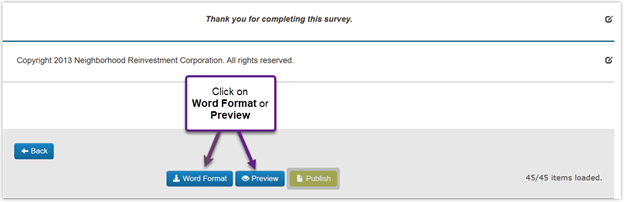
- Click on Word Format to download the tool as a Word document. Go to your computer’s download folder to view the tool. The Word version of a tool can be formatted for printing to adjust page spacing, to insert your organizational logo, or other formatting to make it visually comfortable for respondents.
- Click on Preview to see how the tool appears in SMDS when you enter a response or how it displays when a respondent completes the tool electronically. You can test answering questions in Preview, as well as test the skip logic if there is any in the tool.
- To return to the tool builder view, at the end of the tool click on Close Preview button.

Manage Tools
- Hover your mouse pointer over DATA COLLECTION TOOLS. Click on MANAGE TOOLS.
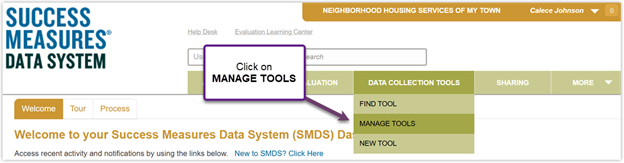
- When you are in the MANAGE TOOLS page, you can see important information about the tool: tool name (Display Name), number of questions, the Status (Published or Draft), Categories, Type (whether it’s in the SM Library or a Custom Tool meaning the tool has been cloned or created new), and if the tool has multiple languages.
- You can sort the list of tools by any of the column headings by clicking on a specific column heading. The column heading that has the ‘
 ’ icon is the sorted column heading.
- To search for a Tool, use the search box at the top of the page to find the tool you need or scroll through the page. You can change the search box field to look for a specific tool by name, category, type, or status.
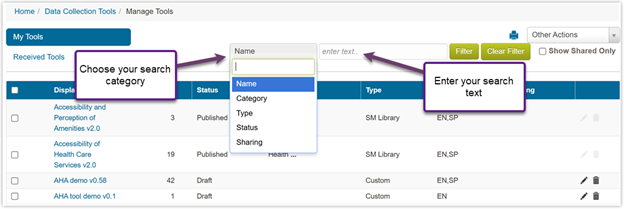
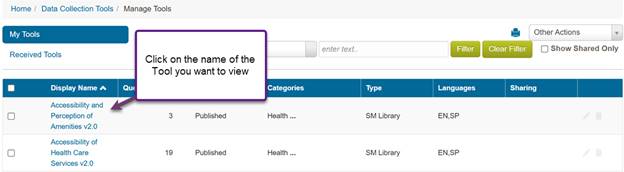
- Click on the blue tool name under the Display Name header, and a page will open with the tool questions and answer sets. See Previewing Option 2 steps under Previewing Tools and Questions for more details.
Organizations Can Share Tools and Receive Shared Tools
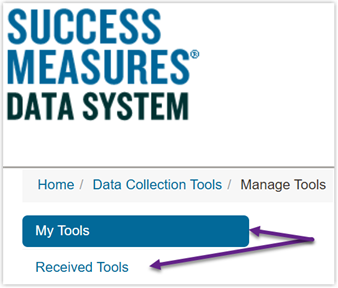
At the Manage Tools page, at the top left you will see two categories, My Tools and Received Tools. Most of the time you will be working in the default setting which is My Tools. The Received Tools will be empty unless your organization has a Sharing Relationship with another SMDS system subscriber who has elected to share specific tools with your organization. Contact successmeasures@nw.org if you want to learn more about sharing tools.
Was this article helpful?
That’s Great!
Thank you for your feedback
Sorry! We couldn't be helpful
Thank you for your feedback
Feedback sent
We appreciate your effort and will try to fix the article