Creating A User
• Login to SMDS.
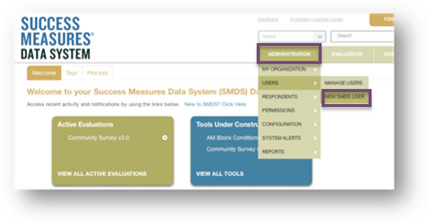
• Place your cursor over the Administration link.
• Place your cursor over the Users link.
• Click the New SMDS User link.
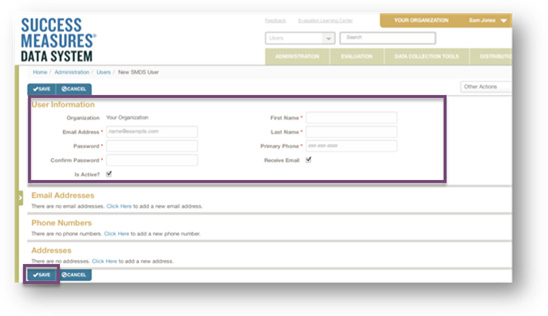
The New SMDS User screen appears. You must complete the required fields, indicated with a red asterisk.
• Click the Save button.
Managing a User
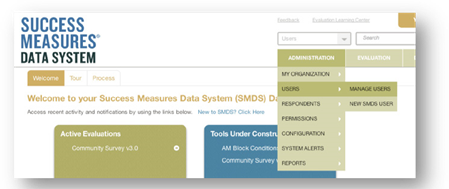
• Place your cursor over the Administration link.
• Place your cursor over the Users link.
• Click the Manage Users link.
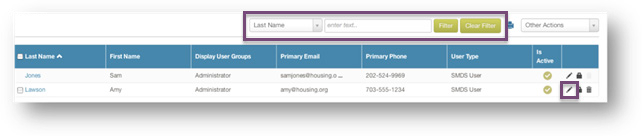
A search for a user can be conducted via the Filter section by Last Name, First Name, Email Address, Permission Group(s) or User Type. You can filter, or scan the list for a user that needs edits.
• After locating the user, click the Pencil icon to edit the user settings.
Note: To delete a user, click the Trashcan icon. To reset a user password, click the Lock icon.
The User Information section is available to be modified. You can alter the First Name, Last Name, Email Address, and Primary Phone information. You can also add additional email, phone and location addresses.
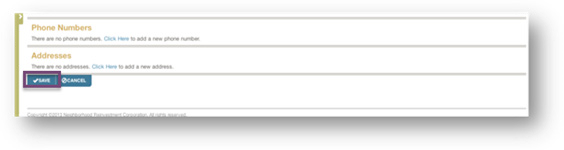
• Click the Save button.
Was this article helpful?
That’s Great!
Thank you for your feedback
Sorry! We couldn't be helpful
Thank you for your feedback
Feedback sent
We appreciate your effort and will try to fix the article