- Login to SMDS.
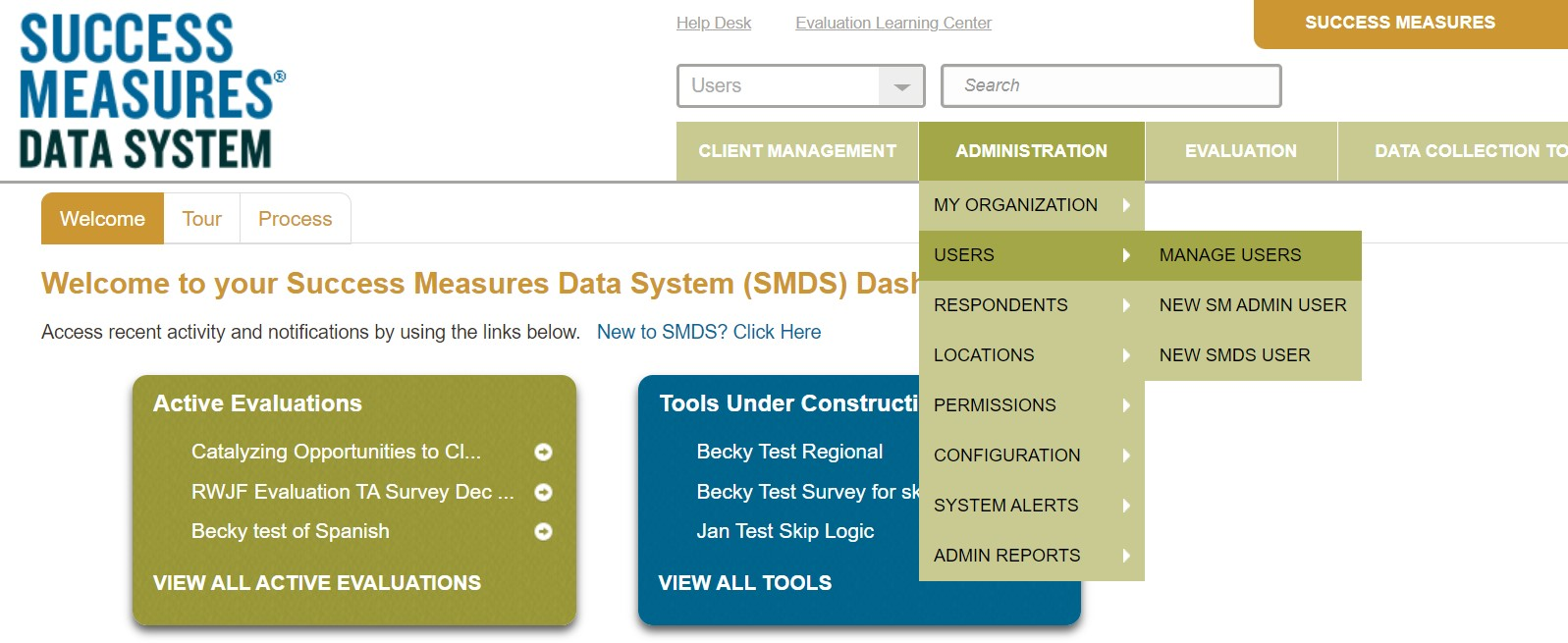
- Place cursor over the Administration - Users link.
- Click the Manage Users link.
Below are the types and descriptions associated with each permission.
- Administrators: Has access to all features.
- Data Management: Has access to data, respondents, email distributions, and reports.
- Evaluation Management: Has access to all features except managing users and permissions.
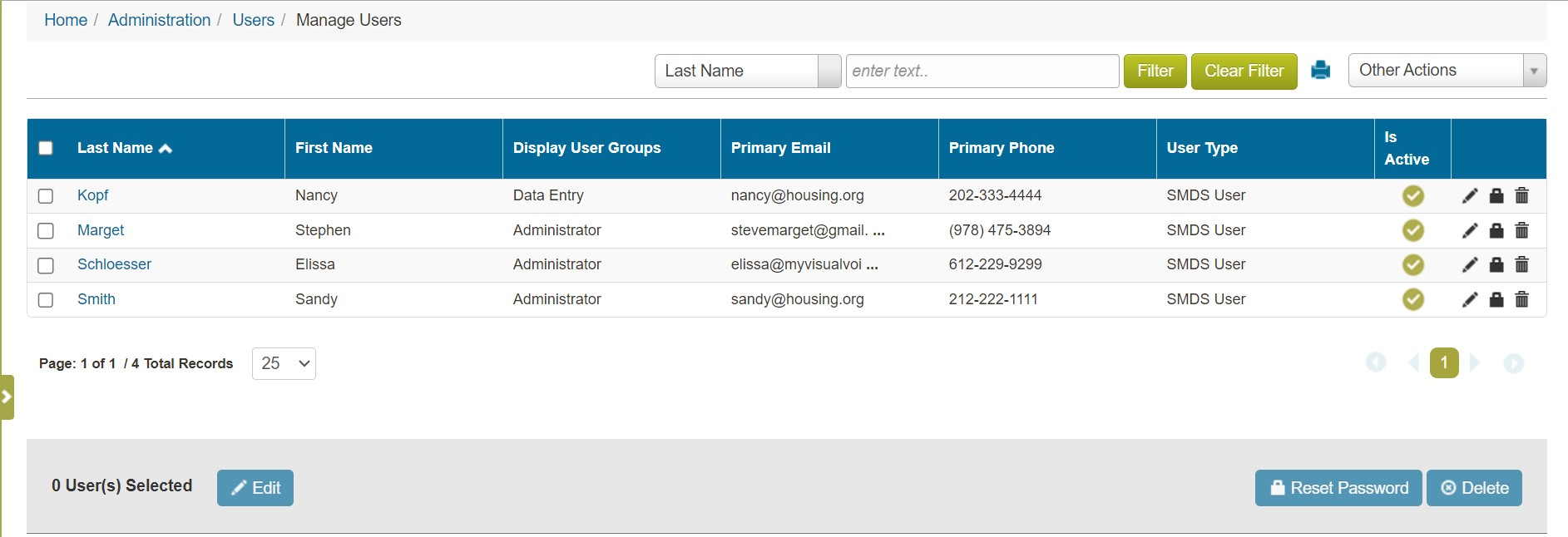
- To change the permission level for a user, click the user’s name.
At the bottom of the page, you’ll see the Permission Groups Tab.
- To delete a permission, click the Trash can to the far right.
- To add permission, click the Add New button.
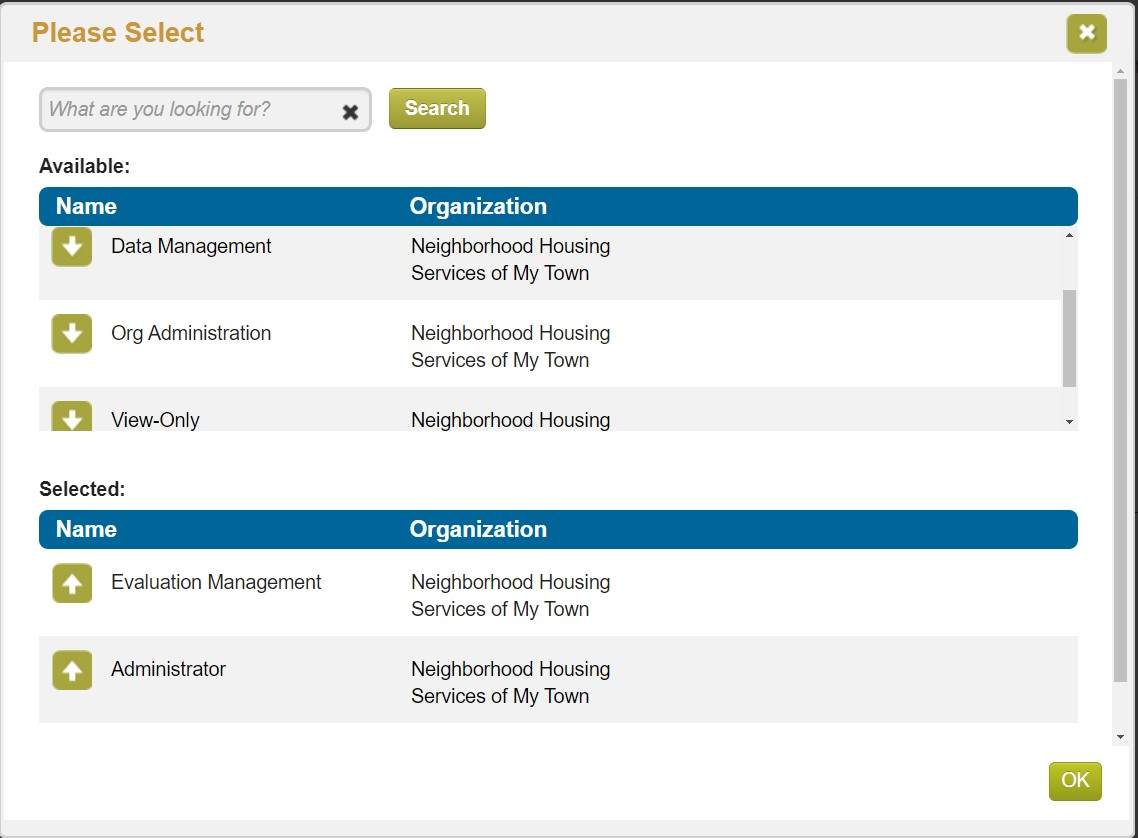
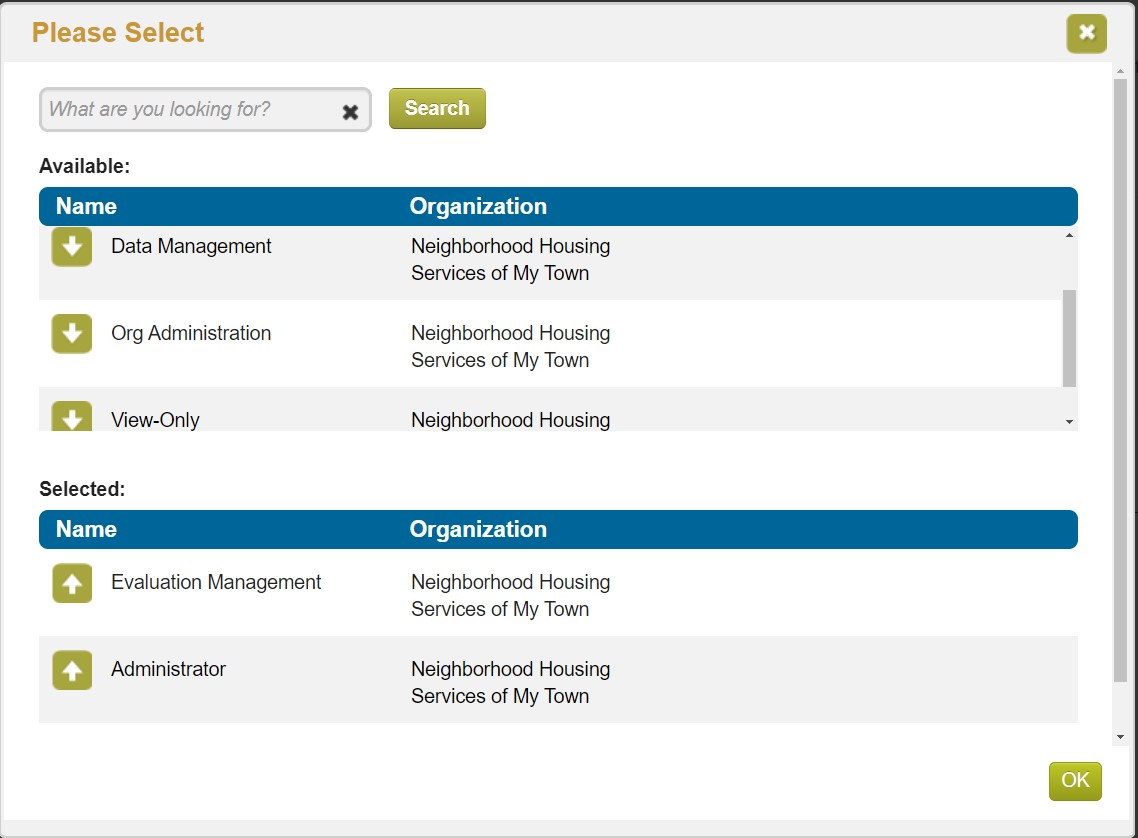
The Please Select dialogue box will display.
- Click the Green button with the white arrow to add a permission to the user.
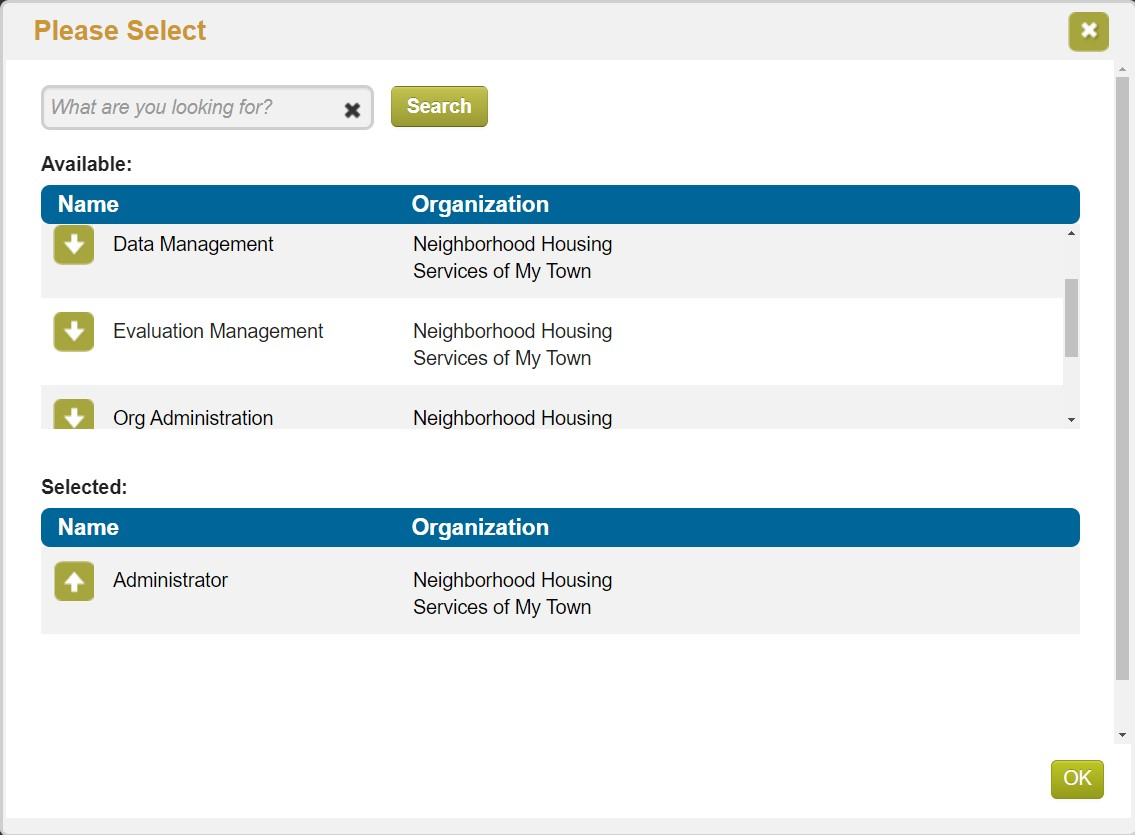
The permission will appear under the Selected section.
- Click the OK button.
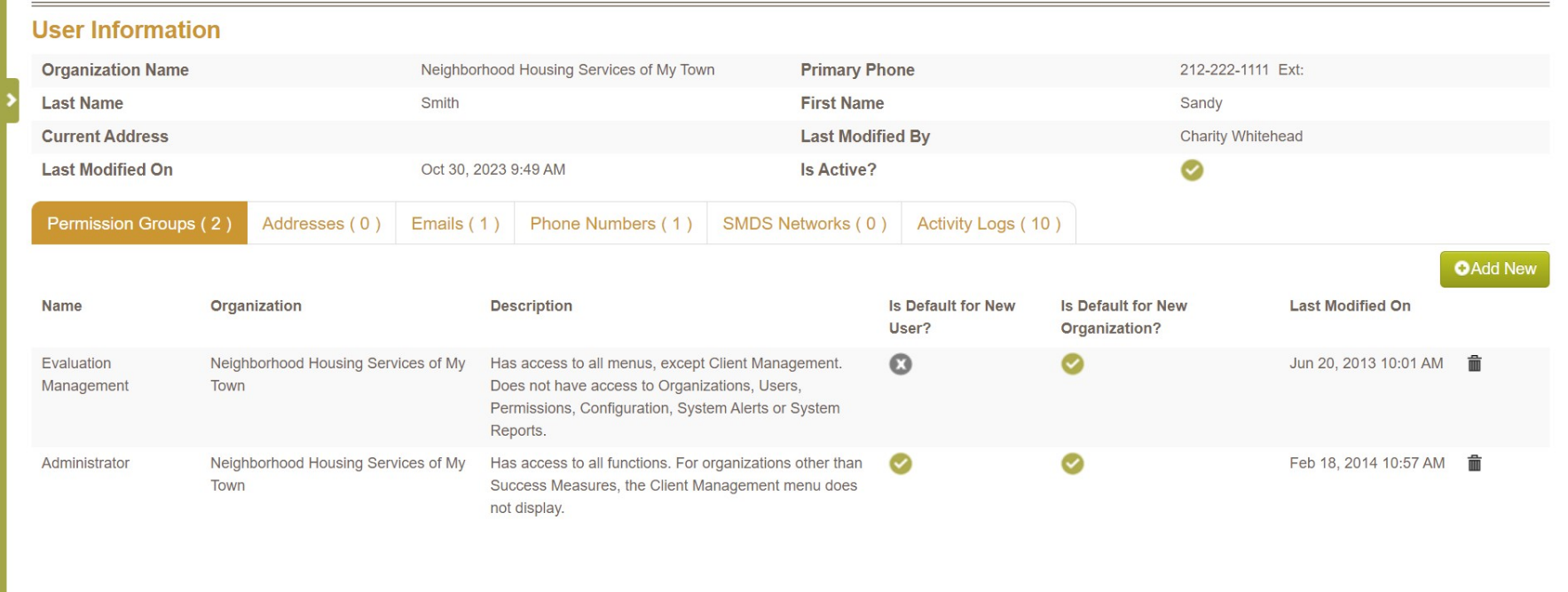
The new permission will be listed in that user’s Permission Groups tab.
Was this article helpful?
That’s Great!
Thank you for your feedback
Sorry! We couldn't be helpful
Thank you for your feedback
Feedback sent
We appreciate your effort and will try to fix the article